
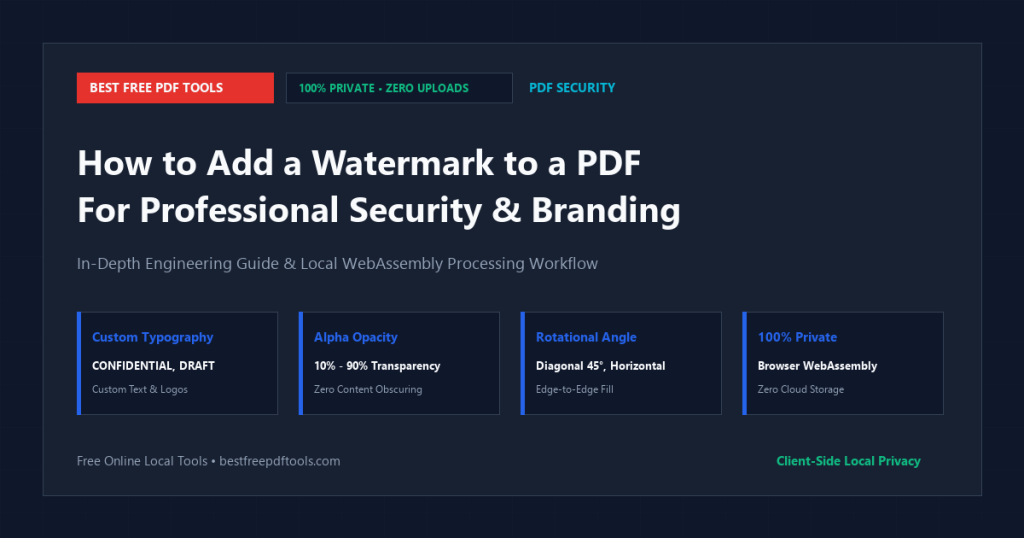
If you need to add a watermark to a pdf, you are not alone. Whether you are dealing with sensitive client records, large academic publications, or daily business paperwork, understanding the real underlying mechanics of digital PDF documents makes the difference between clean, professional files and corrupted, distorted headaches.
Why Watermarks Are Vital for Drafts, Legal Reviews, and Confidential IP
In professional business, legal, and creative practices, distributing unwatermarked drafts is a recipe for disaster. If an unapproved draft contract, preliminary financial projection, or confidential pitch deck is leaked or mistaken for a finalized agreement, the commercial fallout can be severe.
When you add a watermark to a PDF for professional documents, you establish an unmistakable visual classification across every page: stamping ‘CONFIDENTIAL’, ‘DRAFT FOR REVIEW’, ‘DO NOT DISTRIBUTE’, or your corporate brand logo.
A professional watermark must balance visibility with legibility: it must be prominent enough to deter unauthorized sharing, yet subtle and translucent enough that recipients can read the underlying text without eye strain.
The Graphics State: Mastering Alpha Transparency (/ca)
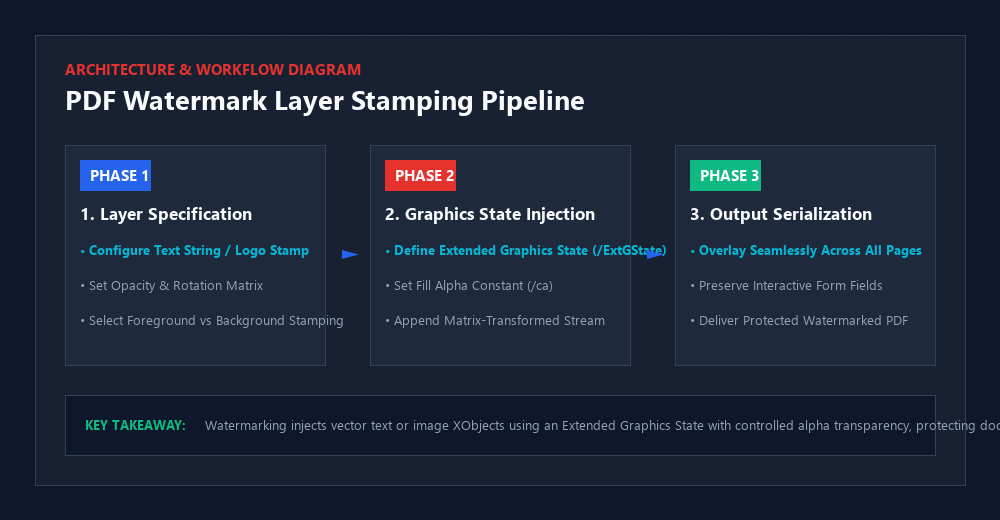
In the PDF specification, translucency is governed by the Extended Graphics State dictionary (`/ExtGState`). Stamping solid opaque text across a document blocks out the underlying text, rendering the file unreadable.
A sophisticated watermarking engine defines an `/ExtGState` resource with a controlled fill alpha constant (`/ca 0.20` to `/ca 0.35`). This applies 20% to 35% opacity to the watermark, creating an elegant, translucent overlay that leaves body text, numbers, and signatures perfectly legible.
Foreground vs. Background Stamping
Depending on your document’s design, you must choose where the watermark lives in the visual stack:
• Foreground Stamping: The watermark is drawn as the final instruction in the page’s `/Contents` stream, ensuring it overlays across photos, scanned receipts, and colored backgrounds. This prevents bad actors from easily whiting out the watermark.
• Background Stamping (Underlay): The watermark is injected before the page content is drawn. This works well for minimalist text documents but can be obscured by full-page images.
What Most People Get Wrong About PDF Watermarks
The Common Misconception: People think that adding a watermark prevents text from being copied or extracted.
Why It Fails in Production: A visual watermark is merely a visual marker; it does not encrypt the underlying text strings. A recipient can still select and copy the text unless you also apply permissions encryption.
The Correct Engineering Approach: Pair a visual watermark with permissions protection (disabling text copying) to achieve comprehensive visual and digital document security.
Watermark Types: Diagonal Text vs. Image Logo Stamps
Option A: Diagonal Vector Text (45° Angle)
- Advantages: Traverses the entire page diagonally; extremely difficult to crop out without ruining the page; lightweight file size.
- Trade-offs: Limited to typographic strings (e.g. ‘CONFIDENTIAL’).
- Best Use Case: Legal discovery, draft agreements, internal memos, and audit copies.
Option B: Transparent Logo Image Stamp
- Advantages: Reinforces corporate brand identity; supports multi-color graphics and crests.
- Trade-offs: Slightly larger file size if using high-resolution raster logos.
- Best Use Case: Architectural drawings, design proofs, client deliverables, and marketing collateral.
The Decision Matrix: Use diagonal text for legal and confidentiality warnings; use logo stamps for branded proofs and design deliverables.
Step-by-Step Practical Workflow
- Open the Free Online PDF Watermarker.
- Upload your PDF document.
- Choose your watermark type: Text (e.g. ‘CONFIDENTIAL’) or Image Logo.
- Customize font, color, opacity (recommended: 20%–30%), scale, and rotation angle (recommended: 45°).
- Preview the watermark in real time across multiple page types.
- Click ‘Apply Watermark’. The WebAssembly engine injects the vector graphics state across all pages in seconds.
- Download your secure, professionally watermarked document.
Frequently Asked Questions
Can I customize the opacity of the watermark so my text remains readable?
Yes! Our tool provides an intuitive opacity slider (from 5% to 90%), allowing you to dial in the perfect balance of visibility and legibility.
Can I add a watermark to specific pages only?
Yes. You can apply the watermark across all pages, odd/even pages only, or exclude the cover page.
Can I use our official company logo as a watermark?
Yes! You can upload a transparent PNG logo and position, scale, and adjust its transparency over your document.
Are my confidential draft files uploaded to your servers?
Never. All watermarking executes 100% locally in your browser memory via WebAssembly. Your documents remain completely secure.
Final Takeaway & Professional Advice
Adding a watermark provides vital visual security and branding for sensitive documents. By controlling opacity and rotational matrices directly in your browser, you can protect drafts and confidential IP in seconds.
? Put This Into Practice: Free Online PDF Watermarker
Ready to apply these techniques right now? Use our free Free Online PDF Watermarker. Everything processes 100% locally in your web browser via WebAssembly—zero file uploads, no cloud waiting queues, and complete personal privacy guaranteed.