
A draft report goes out to a supplier with “CONFIDENTIAL” stamped across every page. A photographer sends a proof PDF to a client with their name over each image. A legal team circulates a settlement agreement marked “DRAFT — NOT FOR EXECUTION” so nobody mistakes the version in their inbox for the final one.
All three did the same thing: they added a watermark to a PDF. It takes about a minute and solves a real problem — anyone who sees the page knows instantly what status it has and where it came from. What it does not do is prevent anyone from copying the content, the first thing worth understanding before you pick your settings.
In this guide you will learn what a watermark actually does on the page, how to choose between text and a logo, which angle, opacity and colour settings keep it readable without wrecking the document, how to apply one step by step, and where the line is between a watermark, a header-footer and true redaction.
What a watermark actually does on the page
A watermark is an extra layer drawn on top of every page — or behind the content, if you choose. It is a visual annotation, not a restriction. The viewer’s software renders it along with the text and images, and that is the whole mechanism.
Three consequences follow from that simplicity:
- It is visible, not enforced. Anyone can screenshot a page or rasterise it to an image to remove the overlay. A watermark communicates status; it does not stop actions.
- It covers the whole document in one pass. A single setting stamps every page at once.
- It can sit above or below your content. Above is more legible and more intrusive; behind keeps the body perfectly readable but is easier to ignore.
This is why the honest pitch for a watermark is deterrence and identification. A document marked DRAFT is far less likely to be quoted as final. A proof marked with your studio’s name is harder to pass off as someone else’s work. Those are real, everyday benefits — they just are not security. If your goal is genuinely preventing access to content, you need encryption with a password, and if your goal is permanently destroying content, you need redaction. A watermark is neither.
Text watermark vs. logo watermark: the trade-offs
Both options do the same job structurally — they stamp a repeating overlay across the pages — but they suit different purposes.
Text watermarks are made of words: DRAFT, CONFIDENTIAL, a case number, a recipient’s name. They are self-explanatory, searchable, fast to generate, and cheap in file size; their weakness is that plain words in a plain font can look bolted on. Text is the right choice when the *message* matters more than the brand — status labels, internal-only markings, document control numbers.
Logo watermarks carry your visual identity: a company mark, a studio stamp. They look deliberate and identify the source even when only a corner of the page is visible. The costs: they need a transparent PNG to avoid a white box, they say nothing on their own (a logo alone does not communicate “draft”), and they add more to file size. Logo is the right choice when the *source* matters — proofs, proposals, branded templates.
Decision factors: what must be understood at a glance, whether the document is internal or external, and whether it is going to print as well as screen. A common professional pattern is both: a logo as a faint background layer plus a bold text label like DRAFT on top.
What most people get wrong
The classic mistake is assuming a watermark protects the document. People stamp CONFIDENTIAL on a PDF, email it, and treat it as if the content were now enclosed. It is not — the underlying text and images are still fully present in the file, still selectable, still copyable. Anyone can remove a watermark by printing to a new PDF or converting pages to images.
What to do instead: match the mechanism to the goal.
- Want people to recognise status at a glance? Add a watermark.
- Want to stop the file being opened by the wrong person? Protect it with a password.
- Want a section of content to be permanently gone? Redact it — and note that a redaction is the only one of the three that removes content rather than covering or restricting it.
Also worth correcting: a watermark applied only to the cover is almost useless for status labels — inconsistency reads as an accident. Apply the label to every page it applies to, or to none at all.
Settings that decide whether the result looks professional
Between “obvious enough to notice” and “light enough to read through” sits a handful of settings. These are the ones that matter:
- Opacity. The single biggest factor. Roughly 10–20% keeps body text readable while the mark stays visible; 30% and above starts to interfere with dense text. For print, go slightly stronger than for screen — light greys often disappear on a laser printer.
- Angle. Diagonal at roughly 45 degrees is the default for a reason: horizontal watermarks blend into text lines, vertical ones fight the page edge. Use horizontal only for subtle top-of-page labels.
- Position. Centre is standard for status labels; corner or bottom is better for ownership marks like a studio name, because it survives cropping and thumbnail views. Repeat-tile layouts are the hardest to read through — use them for previews, not documents people must work in.
- Colour. Light grey is neutral and safe; red signals urgency but fights tracked changes; a brand colour at low opacity works if the page is otherwise monochrome. Never use pure black at high opacity.
- Size. Make it large enough to span a good part of the page width. A small centred word looks like a stamp of approval, not a watermark.
- Layer order. Above content for status labels, behind content for brand backgrounds.
Sensible defaults: diagonal, 45 degrees, 15% opacity, light grey, centred, roughly 70–90% of page width. Adjust from there, and always check one text-heavy page and one image-heavy page before applying to the whole file.
How to add a watermark to a PDF, step by step
Everything below runs in the browser — no installation, no account, no upload.
- Prepare the asset, if you are using a logo. Use a transparent PNG; a JPG will bring its own background with it. For a text watermark you need nothing.
- Decide the label and case. Write the exact string first — DRAFT, CONFIDENTIAL, For review only, a document ID. Case and wording read very differently: “Draft” is a status, “DRAFT” is a warning.
- Open our free Watermark PDF tool and drop in the file. It loads directly in your browser.
- Enter the watermark text or upload the logo. Type the text exactly as it should appear; the preview updates as you type.
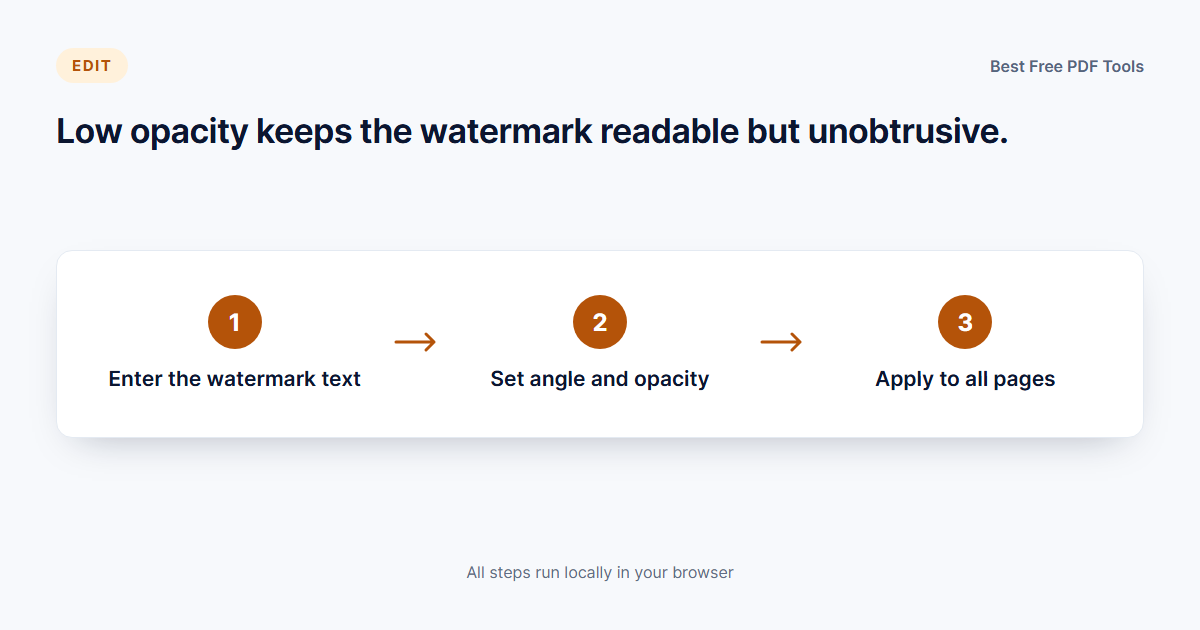
- Set angle, opacity and position. Start from the defaults above: diagonal, 45°, 15% opacity, centred. Adjust opacity with a text-heavy page in view.
- Choose the page range. Apply to all pages for status labels; use a partial range only when the mark genuinely belongs to part of the document, such as a preview section.
- Check the preview against three page types: dense text, a full-page image, and a mostly blank page. If any becomes hard to use, lower the opacity.
- Apply and save to a new file, so your clean original stays available for when the document is no longer a draft.
- Verify the output. Scroll a few pages of the saved file, confirm the watermark covers every page in range, and check the page count is unchanged.
For documents where the label needs a fixed place on every page — a footer with version and status, a header with a case number — a header-footer layout is the better tool, and our Add Header and Footer tool handles that job.
Watermark, header-footer, or redaction? Three different jobs
These three get confused constantly because all three “write something onto every page.” They are not interchangeable.
- Watermark: a status or identity layer, usually diagonal, low opacity, meant to be seen but read through. Job: label the document’s status.
- Header and footer: structured, positional text — page numbers, dates, document IDs, confidentiality lines — always in the same place on every page. Job: carry document control information.
- Redaction: permanently removes the selected content from the file and draws a black box over it. Nothing underneath survives. Job: destroy information before sharing.
The dangerous confusion is between the last two. If a page contains a bank account number and you draw a black rectangle over it with a drawing tool, the text is still in the file — select the rectangle and look. That is decoration, not redaction. Real removal needs a tool that deletes the underlying content; our [Redact PDF tool](/pdf/redact-pdf/) does exactly that. A watermark, by contrast, never claims to hide anything — and should never be relied on as if it did.
Common mistakes to avoid
- Treating a watermark as protection. It deters misuse; it does not prevent copying or access. Use encryption for access control.
- Opacity too high. If a reader has to fight the watermark to read the document, it will be removed or ignored. Stay around 15% for text-heavy pages.
- Labeling only part of the document. Inconsistent stamps look like an oversight. Apply the status mark to every page it applies to.
- Using a JPG logo with a white box. Always use a transparent PNG for logo watermarks.
- Watermarking the final version. Keep a clean, unmarked original of every document — save the watermark as a separate step each time you circulate a marked copy.
- Confusing a black box with redaction. Covered content is still in the file. Redact when the content must actually be gone.
- Forgetting to check print output. Light grey at low opacity often vanishes on paper; check a printed page before sending a document to a printer.
Final takeaway
A watermark is a labelling tool, and used honestly it does its job well: everyone who sees the page knows the document’s status and source. Keep opacity low, angle diagonal, wording deliberate, coverage complete — and keep a clean copy of the original. Know its limits: it deters, it identifies, it does not protect or destroy.
If you have a draft, a proof or a confidential document waiting on your desktop, stamping it takes less time than reading this article did.
Try it with the free tools
Marking a PDF takes one pass through your browser — the file never leaves your device, and there is nothing to install.
- Watermark PDF — stamp text or a logo across every page with your own angle, opacity and position.
- Add Header and Footer — put fixed document-control lines, page numbers or status text in the same place on each page.
- Redact PDF — permanently remove sensitive content instead of merely covering it up.
Does adding a watermark to a PDF actually protect the document?
u003cp>No. A watermark is a visual label: it marks status and ownership, which deters casual misuse, but the underlying content remains fully present in the file. Anyone can copy it or strip the overlay by printing the pages to a new PDF. For real protection, encrypt the file with a password; for permanent removal of content, use redaction.u003c/p>
What opacity should I use for a watermark?
u003cp>Around 10–20% opacity works well for most documents: the mark stays clearly visible while body text remains easy to read. Denser documents sit at the lower end; sparse pages can take a little more. If you plan to print, test a page first — light grey often fades on paper.u003c/p>
Should my watermark be diagonal or horizontal?
u003cp>Diagonal at roughly 45 degrees is the safest default: horizontal watermarks blend into text lines and get overlooked, while vertical ones fight the page margins. Use horizontal only for subtle labels at the top or bottom of a page, and reserve flat, repeated tiles for preview copies where legibility of the body text matters less.u003c/p>
Can I watermark only some pages of a PDF?
u003cp>Yes — partial watermarking is appropriate when the mark genuinely applies to part of the document, such as a preview section. For status labels like DRAFT or CONFIDENTIAL, cover every page: a stamp on only a few pages reads as an accident and loses its effect.u003c/p>
What is the difference between a watermark, a header-footer and redaction?
u003cp>A watermark is a low-opacity overlay that labels the document’s status or identity. A header or footer is structured text in a fixed position — page numbers, dates, case IDs. Redaction is different in kind: it permanently deletes the selected content and draws a black box over it. Covering text with a drawing tool is not redaction — the text is still in the file.u003c/p>