
You filled in a form PDF, sent it on, and the recipient reports that every answer has vanished — or that the checkboxes printed as empty rectangles. Someone prints an annotated document and the margin comments do not appear at all. A signed PDF opens in a different viewer with the signature block sitting half a centimetre off where it was.
All of these are the same class of problem: a PDF contains interactive layers — form fields, annotations, digital signature blocks — that each viewer and each printer renders slightly differently. The fix is to flatten a PDF: convert those interactive elements into ordinary page content that behaves identically everywhere.
This guide explains what flattening does at the file level, exactly when you should do it, what you give up in return, how to do it step by step, and how to check the result before the file reaches a printer or a counterparty.
What flattening actually does to the file
A PDF can hold several independent layers of information. The page content — text, images, vector drawing — is the base. On top of that sit interactive objects: form fields with names and values, annotations such as comments and highlight marks, signature appearances, and stamps. These objects are separate from the page, which is why they can be edited, moved, tabbed through, and re-rendered differently by different software.
Flattening merges those layers down into the base page. When the operation is done:
- Form fields become printed values. The text someone typed becomes ordinary glyphs on the page; checkboxes become a filled or empty square drawn as vector art.
- Annotations become permanent marks. A highlight stays highlighted, a comment stays in its box, a stamp stays exactly where it was placed.
- Nothing is editable anymore. There is no field to click into, no comment thread to reply to, no signature object to inspect.
- Rendering becomes uniform. Every element is baked into the page content, so any conforming viewer and any print shop’s RIP will display and print the same result.
What flattening does *not* do is change the static page content or compress the file — size reduction is a separate step. And note the structural fact: flattening is one-way. Once fields are merged into the page, no tool can turn them back. The values live on as printed text, but they are no longer data.
Why printing and sharing are the two moments that need it
Two everyday situations make flattening genuinely necessary rather than just tidy.
Printing. Printers do not render interactive layers reliably. A field with a white background and no border can print blank; a highlight can be configured to print with or without its colour; an overflowing text field clips differently in the print pipeline than on screen. Office printers are especially unpredictable, because they use their own PDF interpretation. A flattened file has nothing left to interpret — the page is one static picture of itself.
Sharing across organisations. Once a document leaves your control, you no longer know what software opens it. Free viewers, browser preview panes and mobile apps render interactive layers with varying fidelity: some strip form values when converting to images for preview, some move annotation notes to a sidebar. Flattening removes that dependency. It matters most where appearance is evidence: signed agreements, marked-up contracts, submitted tenders.
There is also a quieter reason: a flattened document cannot be edited further by accident. Nobody can tab into a field, overwrite a value, and save a subtly different version of what was signed.
What most people get wrong
The most common error is flattening too early. People fill in a form and flatten it immediately, before anyone has reviewed the answers — then discover a typo in the address field and find there is nothing left to correct except starting over or scribbling on top.
Flattening is a finalisation step, not a workflow step. It belongs at the moment the document stops changing: after all fields are filled and checked, after all comments have been resolved or intentionally preserved, right before printing or sending.
The second common error is the opposite: never flattening at all, because “the interactive version is more professional.” It is more professional *if the recipient works with it* — a live form a counterparty must complete should absolutely stay interactive. The mistake is sending the live working version as the final record. A document with fillable fields invites edits; a flattened one documents a state.
The misconception underneath both errors is that flattening and filling are the same activity. They are sequential phases with a clear boundary. Fill, verify, and only then flatten. Keep the filled-but-unflattened version in your files — it is the only copy you can fix later.
The trade-offs: flat archive vs. live form
Flattening is not universally better — it is better for a specific moment in a document’s life. Here is the honest comparison.
| Property | Flattened PDF | Interactive PDF |
|---|---|---|
| Renders identically everywhere | Yes | Not guaranteed |
| Prints reliably | Yes | Depends on viewer and printer |
| Editable fields | No | Yes |
| Values extractable as data | No | Yes (via field export) |
| Safe as a final record | Yes | Weak — values can change |
| File size | Similar or slightly smaller | Similar |
Choose to flatten when: the document is final, it will be printed or sent to people whose software you do not control, its appearance is part of its purpose, or it needs to serve as a record of exactly what was agreed.
Keep it interactive when: someone else still has to fill it in, the answers need to be exported to a spreadsheet or database, the form will be reused as a template, or a workflow system downstream reads the field values.
Decision factors: who receives the file, whether appearance must be guaranteed, whether the document is a process artefact or a record, and whether anyone still needs to change anything. When two versions are needed — a live form for collection and a frozen record for filing — maintain both: fill and verify once, flatten a copy, and archive the pair.
How to flatten a PDF, step by step
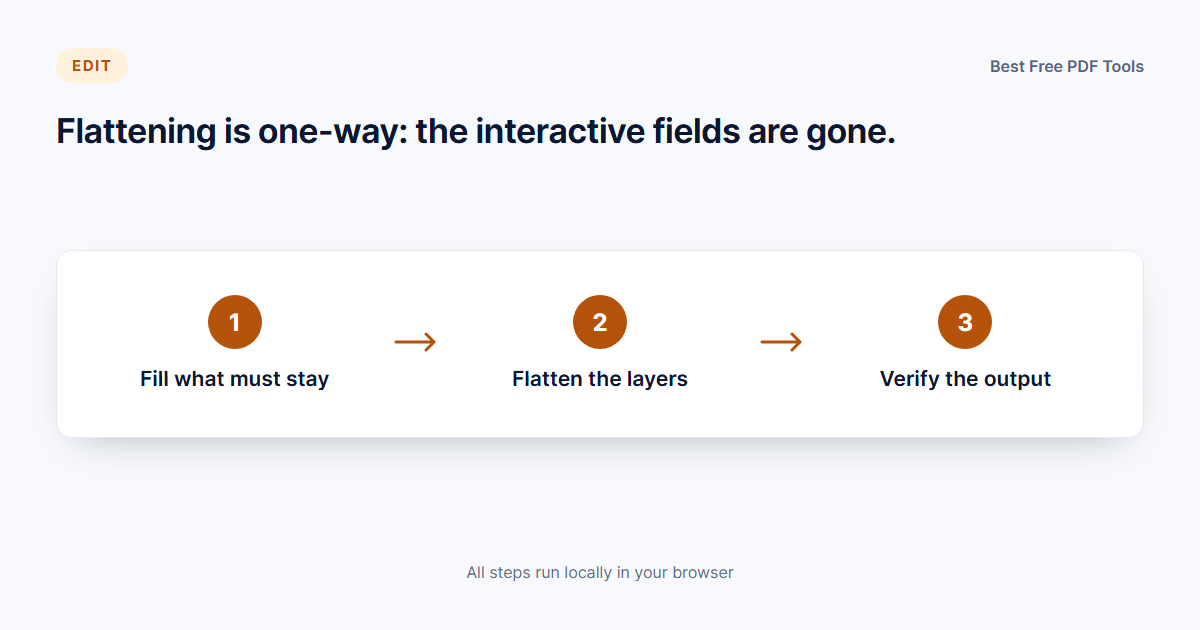
- Fill everything first. Complete every field, check every box, and place every signature while the document is still interactive. If the form is not yet filled, do that with our free Fill PDF Forms tool before you go any further.
- Review as a reviewer would. Read the filled document end to end. Check spelling in typed fields, confirm checkbox states, and look for content overflowing its field box. This is your last easy chance to fix anything.
- Decide what stays visible. If the document carries comments or review annotations that should not appear in the final version, delete them now. Everything that survives flattening becomes permanent page content.
- Work from a copy. Keep the filled, unflattened original — it is your only editable version — and flatten a duplicate.
- Open the flattening tool. Load the file into our free Flatten PDF tool. It runs in your browser, so the document is never uploaded anywhere.
- Run the flatten operation. Confirm the settings and process the file. The tool merges form fields, annotations and stamps into the page content.
- Verify the output visually. Open the flattened file and compare it against the filled original, page by page, focusing on pages with dense fields. Confirm no value disappeared, nothing shifted, and every checkbox kept its state.
- Verify structurally. Try to click into a former field: nothing should be editable. Check the file’s properties to confirm the form layer is gone, and confirm the page count is unchanged.
- Proceed to print or send. The flattened file is now safe for any viewer or printer. If the document is going to a press or a professional printer, run it through print optimisation as well — our Optimize PDF for Print tool handles colour space and resolution preparation as a final step.
What to check after flattening, especially before print
A flattened file deserves one careful inspection, because there is no undo:
- Field values. Every typed value appears exactly as entered, with nothing clipped or truncated.
- Checkbox and radio states. Filled boxes visibly filled; empty ones correctly empty.
- Signatures and annotations. Signature images at full size in position; highlights keeping their colour and extent — or absent if you deleted them.
- Page count and order. Unchanged from the filled original.
- Print output. Print one representative page and compare it to the screen — this catches background colours printing as solid blocks, faint highlights vanishing, and margin text shifting.
For print-bound documents, the usual remaining risks are colour related rather than structural — RGB colours that shift on a CMYK press, and low-resolution images that look fine on screen. Those are what print optimisation addresses, after flattening has done its part.
Common mistakes to avoid
- Flattening before final review. Do all corrections first; the flattened copy cannot be edited back.
- Overwriting the filled original. Always flatten a copy and archive the interactive version alongside it.
- Flattening a form someone else still needs to complete. Keep collection-phase forms live; flatten only at the handover to record or print.
- Skipping the page-by-page check. Most flattening failures are visible — a missing value, an unprinted highlight — and catchable in two minutes.
- Assuming flattening removes data. It merges appearance into the page; it is not redaction. Sensitive content must be redacted separately before flattening over it.
- Flattening a digitally signed document by accident. Structural changes invalidate signatures — flatten first, sign after, or leave signed files untouched.
- Confusing flattening with compressing. Flattening fixes rendering; size reduction is a separate operation if the file also needs to be smaller.
Final takeaway
Flattening is the step that turns a working document into a final one. It merges fields, annotations and signatures into the page itself, so the file renders and prints the same everywhere and cannot be casually edited afterwards. The discipline it requires is sequencing: fill completely, review carefully, flatten a copy, verify the result. Done in that order, it removes the most common class of “it looked different at the print shop” failures.
If you have a filled form waiting to go to a printer or out to a counterparty, flatten the copy you are sending — and keep the interactive original safely in your files.
Try it with the free tools
Finalising a filled PDF is a task you can complete in your browser right now — nothing is uploaded, and the result stays on your device.
- Flatten PDF — merge form fields, annotations and signatures into permanent page content.
- Fill PDF Forms — complete every field and check every box before you flatten.
- Optimize PDF for Print — prepare the flat file’s colours and resolution for the printer or press.
What does it mean to flatten a PDF?
u003cp>Flattening merges a PDF’s interactive layers — form field values, annotations, stamps, signature appearances — into the ordinary page content. After flattening, a typed answer is printed text and a checked box is a drawn square: nothing is editable and every viewer shows the same result. The change is permanent; there is no way to restore the interactive fields afterwards.u003c/p>
Should I flatten a PDF before sending it to a print shop?
u003cp>Yes, if the document contains form fields, annotations or stamps. Print pipelines render interactive layers inconsistently — fields can print blank and highlights can disappear. A flattened file carries no interactive elements to misinterpret, so the print shop’s output matches what you saw on screen. For professional printing, follow flattening with a print optimisation pass.u003c/p>
Can I still edit a PDF after flattening it?
u003cp>No. Flattening is one-way: field values become static page content and the fields themselves are gone. That is exactly why you should always flatten a copy and keep the filled-but-unflattened original — it is your only editable version, and you will need it if a typo surfaces after the fact.u003c/p>
What is the difference between flattening and redacting a PDF?
u003cp>Flattening changes how content is stored — interactive objects become static page elements — but the information stays visible in the file. Redaction permanently deletes selected content before covering it. If a document contains sensitive data that must not be recoverable, redact it first; flattening afterwards does not make hidden content any more hidden.u003c/p>
Does flattening reduce the file size?
u003cp>Not meaningfully in either direction. The page content is rewritten, but the underlying text and images are unchanged, so the size stays roughly the same. If the file also needs to be smaller — for email limits or web use — compression is a separate step you can run on the flattened result.u003c/p>