

You have a 40 MB PDF that the mail server rejects, or a client portal that caps uploads at 10 MB, and you need the file smaller — but not so much smaller that the charts turn to mush and the fine print goes fuzzy. That tension is the entire problem. Most advice online either overpromises (“shrink it by 90% with zero quality loss!”) or tells you to drag a slider left without explaining what the slider is actually doing to your document.
This guide explains what makes PDFs large, which parts compress with no visible change and which never will, and how to compress PDF files without losing the quality that matters: sharp text, readable charts, clear photos. You will get a step-by-step workflow for your browser, checks to verify the result, and the mistakes that quietly ruin files after compression.
Why PDF files get so big in the first place
A PDF is a container: embedded fonts, vector graphics, raster images, annotations, and a layer of bookkeeping — object tables, metadata, and sometimes old revisions of the document. Each contributes differently to file size, and knowing which dominates tells you how much compression can achieve.
The usual suspects, most frequent first:
- Embedded images. Scanned pages and photographs are almost always the bulk of an oversized PDF. One high-resolution full-page scan can weigh a megabyte or more; multiply by fifty pages and you have your problem.
- Full fonts instead of subsets. Some exporters embed an entire font program when only a dozen characters are used — rarer today, common in older files.
- Leftover revisions. Incremental saves leave old object versions behind, so a heavily edited document can carry kilobytes — or megabytes — of dead weight.
- Oversized page dimensions. Pages scanned at 600 DPI carry far more pixels than any standard print size needs.
The practical takeaway: text-only pages are tiny. If a PDF is large, images are the cause in the overwhelming majority of cases. Exact figures depend on the document, but the principle holds — compression wins come from images, and everything else is rounding error.
What compression actually does to a PDF
A PDF compresses its content at two different levels, and the difference between them is the difference between “no visible change” and “this looks worse.”
The first level is stream compression — a lossless, zip-style squeeze applied to the file’s internal data streams. A good compressor squeezes a little more by rebuilding object structure, removing unused objects and re-encoding streams. The output is identical on screen; the gains are real but modest, often single-digit percentages.
The second level is image re-encoding, and this is where the big wins live. A compressor downsamples embedded images — say, from 300 pixels per inch to 150 — and re-encodes them at a lower quality setting. Halving the pixel dimensions of an image cuts its data to roughly a quarter, which is why image-heavy files can shrink dramatically while text pages barely change.
Here is the point most people miss: compressing a PDF does not have to damage the text. In a properly compressed file, text stays vector text with its embedded fonts, vector logos stay vector, and only raster images are touched. The blurry, unselectable mess people associate with “compressed PDFs” usually comes from the wrong approach entirely — printing the document to a new PDF at screen resolution, which flattens everything into pixels. That is not compression; it is destruction with a friendly name.
What most people get wrong
The biggest misconception is that quality loss from compression is uniform — as if the whole document fades a little when you squeeze it. That belief leads people either to avoid compression entirely (“I can’t risk it”) or to agonize over settings that make no difference.
In reality, loss is concentrated in one place: raster images. Text and vectors are either completely unchanged or completely destroyed, depending on the method — never “a bit blurrier.” For most business documents the text is what matters, and text survives compression untouched at any reasonable setting. For a photo book, the images are the product, and settings deserve real care.
The second misconception is that one setting fits every file — compressing a scanned contract as aggressively as a marketing brochure wastes quality where you needed it.
What to do instead: decide what the file is *for*. If it must fit an email limit, target it with one step of margin; if it is a print master, keep an uncompressed original and compress only the sharing copy. Then verify — thirty seconds on one text page and one image page says more than any preset name.
Lossless vs lossy compression: the trade-offs
Both approaches are useful, and the right choice depends on the document and its destination.
| Approach | What it does | Size reduction | Quality risk | Best for |
|---|---|---|---|---|
| Lossless | Rebuilds structure, removes unused objects, re-comflates streams | Modest — often single-digit percentages | None | Archival files, legal documents, print masters |
| Lossy (moderate) | Downsamples images, re-encodes at medium quality | Significant on image-heavy files | Low; visible only on close inspection of photos | Email attachments, web uploads, most sharing |
| Lossy (aggressive) | Heavy downsampling, low image quality | Dramatic | Clear on any photo page | Last resort when a hard size limit must be met |
Decision factors, in the order I weigh them:
- What is inside the file. Text and vector content compresses safely. Photographs, scans, and complex illustrations pay the price.
- How the file will be used. On-screen reading tolerates moderate compression well. Print demands higher image resolution. Zooming into fine detail — maps, engineering drawings — demands more.
- Whether you keep a master. If the compressed file is a sharing copy and the original stays in your archive, lossy compression carries almost no real risk.
If you are unsure, take the middle path: moderate compression now, verify, and only go more aggressive if the file is still too large.
How to compress a PDF without losing quality, step by step
This workflow runs entirely in your browser with our free Compress PDF tool — no upload to a server, no account, the file never leaves your device.
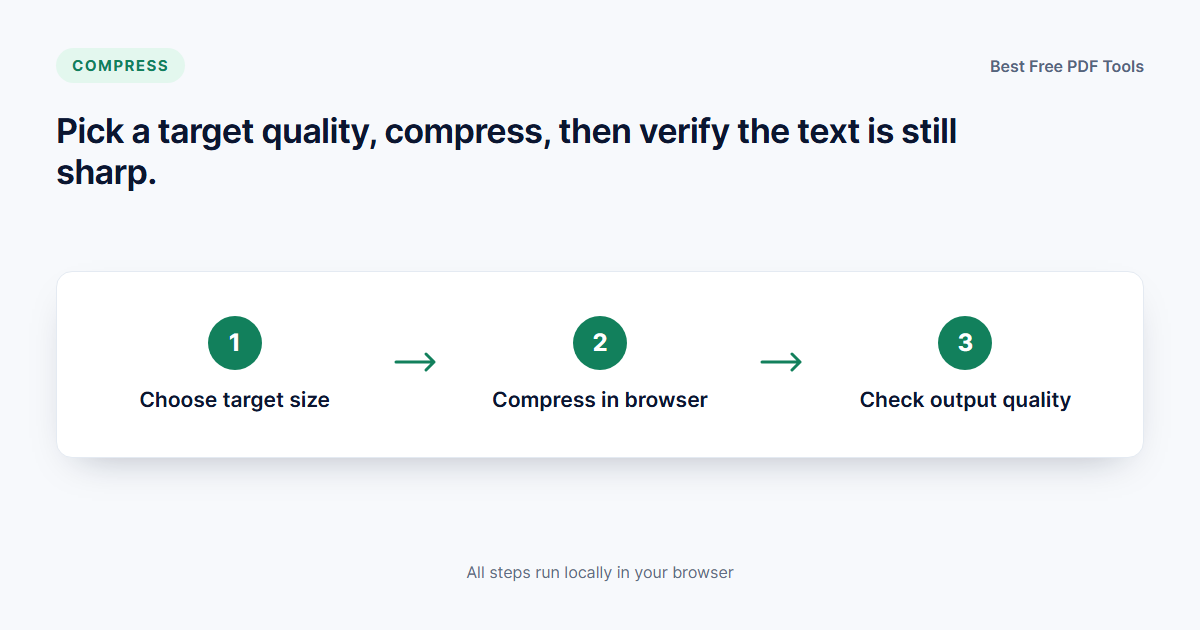
- Set a size target before you start. Check the limit: mail servers commonly accept 10–25 MB, portals often cap at 5 or 10 MB. Aim slightly under it.
- Look at what you are compressing. Page count, and how much is photos or scans versus text — a text report and a scanned manual need different settings.
- Open the Compress PDF tool and add your file. Everything runs locally in the browser; nothing is uploaded.
- Pick a quality setting. Start at medium for general documents; gentler for image-heavy material where photos carry the value; aggressive only for hard size limits.
- Compress and note the new size. Comfortably under target? Stop — the smallest possible file is not the goal, the right size is.
- Verify before you share with the two checks in the next section.
- If it is still too large, iterate once. Drop one quality level and repeat. Two passes without success means the content is the problem — ask whether every page needs to be there.
- Compressing many files? Batch PDF Compressor applies one set of settings across a whole folder — invoices, statements or meeting packs.
How to check whether the result is still good
Compression is only finished when you have verified the output. Three checks cover nearly every failure mode:
- The text check. Open any text page, zoom to 200%, and look at letter edges. Crisp edges mean the text stayed vector; soft or blocky edges mean the page was rasterized — wrong however small the file is. If the cursor cannot select a sentence, the text layer is gone.
- The image check. Jump to the most photo-heavy page and zoom to 100–150%. Minor softening here is normal and invisible at reading size; obvious JPEG blocks in gradients mean the setting was too aggressive.
- The sanity check. Page count matches, links work, nothing shifted. Seconds, and it catches structural damage.
If all three pass, the file is safe to send. If the text check fails, do not send it — that result came from the wrong tool or workflow.
When to optimize for web instead of compressing for email
Compressing for an email attachment and preparing a PDF for a website are related but different jobs, and using the wrong one leaves points on the table.
An email attachment just needs to be small enough. Compression settings are the whole game.
A PDF hosted on a website has a different enemy: loading time. A web-optimized PDF is *linearized* — restructured so the first page displays while the rest of the file still downloads, which matters on slow connections and long documents. It also strips stale metadata and rebuilds object streams.
The trade-off: a linearized file is not meaningfully smaller than a moderately compressed one. If size is the only constraint, plain compression does the job; if the file will be read on phones, [our Optimize PDF for Web tool](/pdf/optimize-pdf-web/) is the better fit — and for a folder of documents going to a shared drive, batch compression is the time-saver.
Common mistakes to avoid
- “Printing to PDF” as a compression method. It recreates the document at fixed resolution and turns text into pixels. Instead, use a real compressor that leaves text as text.
- Compressing the same file repeatedly. Each lossy pass re-encodes images again and quality compounds downward. Instead, keep a master and compress once from it.
- Chasing the absolute smallest size. Past a point, each megabyte costs visible quality for negligible gain. Instead, set a target based on the destination and stop when you clear it.
- Never verifying the output. The failure modes above are invisible in a file listing. Instead, run the text and image checks before you hit send.
- Using an aggressive setting on a text document. It buys almost nothing while wrecking embedded screenshots. Instead, use moderate settings.
- Ignoring the page count. Sometimes a PDF is large because it contains pages nobody needs — duplicate appendices, blank separators. Remove them instead of compressing harder.
Final takeaway
To compress a PDF without losing quality, you need two things: the right setting for the file’s purpose, and a quick verification habit. Moderate compression preserves text perfectly and softens photos only on close zoom; aggressive compression is a tool for hard size limits, not a default. Keep a master copy, compress once from the master, and run the text-and-image check before you share. The whole routine takes a couple of minutes once — and the tools below do it in your browser, with your file never leaving your device.
Try it with the free tools
Every step in this guide is something you can do right now, in your browser — no uploads, no sign-up, and your file never leaves your device.
- Compress PDF — shrink a single PDF with a quality setting you choose, and see the new size immediately.
- Optimize PDF for Web — linearize and clean a PDF so it loads fast when hosted on a website.
- Batch PDF Compressor — apply the same compression settings to a whole folder of PDFs at once.
Does compressing a PDF reduce quality?
u003cp>Lossless compression — structure cleanup and stream re-encoding — reduces size with zero quality change. Lossy compression re-encodes embedded images, which can soften photos at aggressive settings. Text and vector content stays sharp either way, as long as you use a real compressor rather than printing the document to a new PDF.u003c/p>
How much can I compress a PDF without noticeable loss?
u003cp>For typical business documents, moderate compression is usually invisible at normal reading size: text stays perfect and photos soften only under heavy zoom. The exact figures depend on how image-heavy the file is. A text report barely changes visually; a photo-heavy brochure shows the difference sooner.u003c/p>
Why is my PDF still large after compressing?
u003cp>Usually because the content itself is heavy — high-resolution scans, embedded photographs, or many pages. Compression can only reduce what is there. Check whether every page is needed, and consider removing unnecessary pages before compressing again with a slightly stronger setting.u003c/p>
Can I compress a scanned PDF?
u003cp>Yes — scans are images, so they are prime candidates for compression. Downsampling overly high-resolution scan images often shrinks the file dramatically. If the scan has a text layer you need for searching, verify that text selection still works after compressing; a proper compressor preserves it.u003c/p>
Is it safe to compress a PDF online?
u003cp>It depends entirely on where the processing happens. Upload-based services store your file on their servers, at least briefly. Our tools run in your browser instead: the file is read, compressed, and saved locally, and it never leaves your device.u003c/p>